

We all know the issue: A user adds his Business Account on his personal device and when logging in, the following message appears:
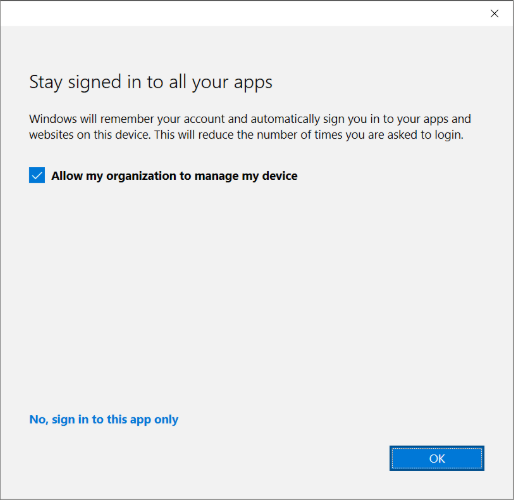
If the user does not pay attention and clears the checkbox at the «Allow my organization to manage my device» and the user is in the Scope for MDM enrollment, this will enroll the device to Intune. In most cases, this is not desired.
Microsoft has finally fixed this and has added the new Setting «Disable MDM enrollment when adding work or school account on Windows» which can be found in Intune under Devices – Windows – Enrollment – Automatic Enrollment:
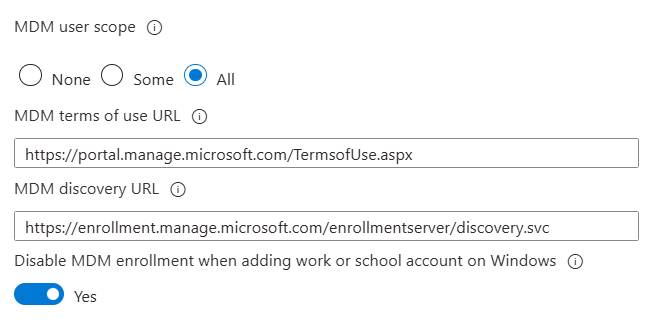
This now allows you to disable enrollment when adding a Business Account when just signing in with a Microsoft account.
Of course, it is still possible to enroll the Device using Accounts – Add a work or school Account in Windows. But this helps to mitigate the issue of accidental enrollments to Intune.
The flow now looks as follows: The user gets asked if he wants to Sign in to all Apps or just this app. This determines whether the device gets registered in Entra ID or not:
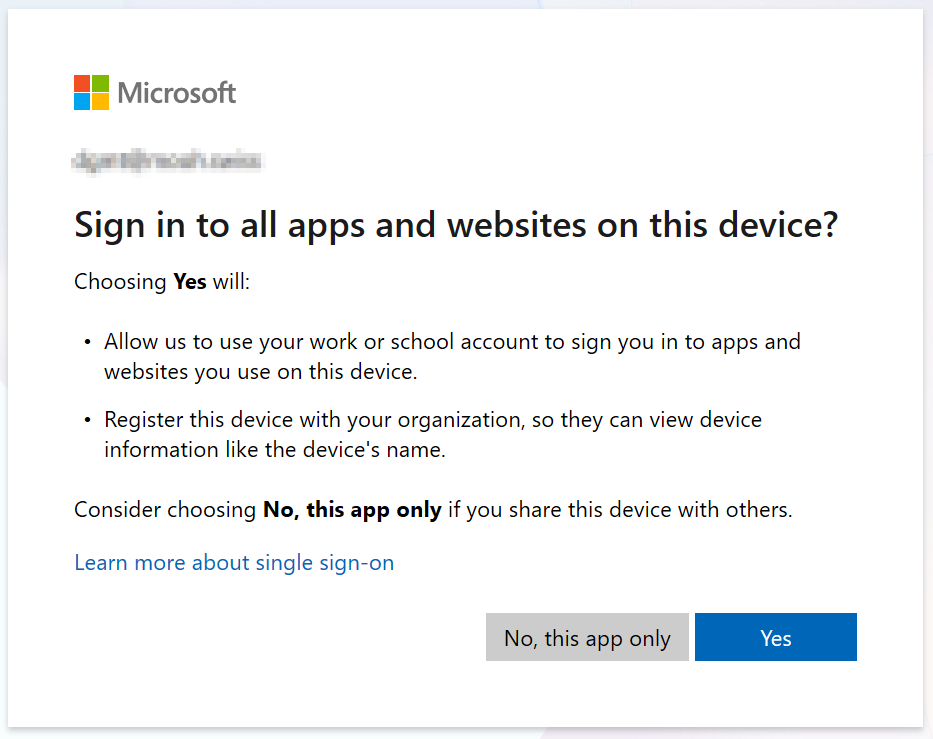
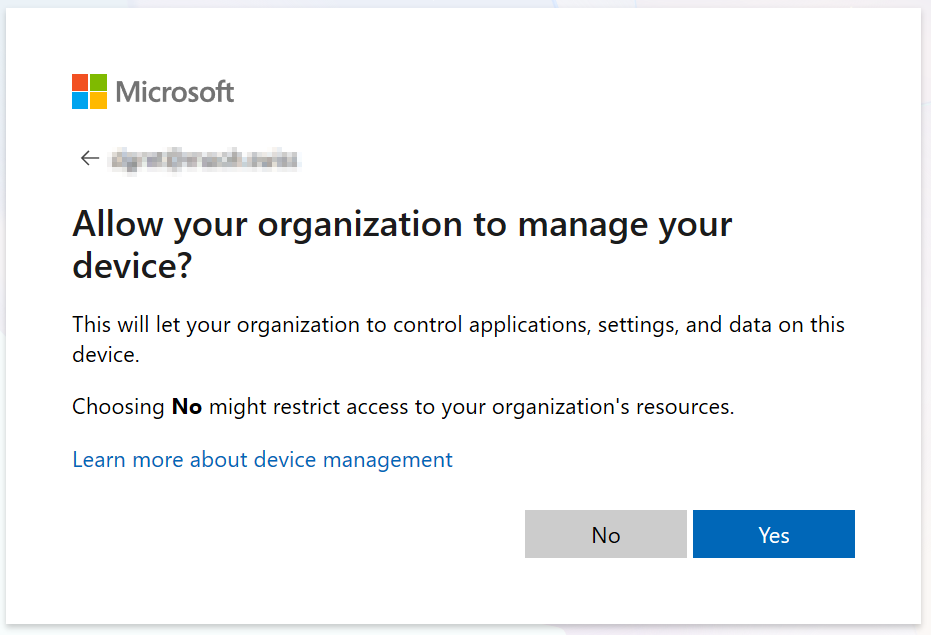
Now if the Setting «Disable MDM enrollment when adding work or school account on Windows» is set to Off (Default for existing tenants), the User gets asked to allow the organization to Manage the Device and it gets enrolled to Intune. If the setting is set to On, this Window is skipped and the Device does not get managed.
Change Setting with the API
If you are a CSP and Managed multiple Tenants, you may not want to set this Setting manually on every Tenant. But there’s the possibility to check and set this Setting with the Graph API. So first connect with the following Scope:
Connect-MgGraph -Scopes "Policy.ReadWrite.MobilityManagement"Check Status
You can check the status of the Setting with one of the two following requests. We are using PowerShell in this case. So either as a plain HTTP Request using Invoke-MgGraphRequest
(Invoke-MgGraphRequest `
    -Method GET `
-Uri "https://graph.microsoft.com/beta/policies/mobileDeviceManagementPolicies/0000000a-0000-0000-c000-000000000000").isMdmEnrollmentDuringRegistrationDisabledOr using the Get-MgBetaPolicyMobileDeviceManagementPolicy Cmdlet.
(Get-MgBetaPolicyMobileDeviceManagementPolicy -MobilityManagementPolicyId "0000000a-0000-0000-c000-000000000000").AdditionalProperties.isMdmEnrollmentDuringRegistrationDisabledThose two Requests then either return $true or $false.
Enable the Setting
To enable the Setting we set the value to $true. This can also be done either with the Invoke-MgGraphRequest or the Update-MgBetaPolicyMobileDeviceManagementPolicy Cmdlet.
Invoke-MgGraphRequest `
    -Method PATCH `
    -Uri "https://graph.microsoft.com/beta/policies/mobileDeviceManagementPolicies/0000000a-0000-0000-c000-000000000000" `
-Body '{ "isMdmEnrollmentDuringRegistrationDisabled": true}'Update-MgBetaPolicyMobileDeviceManagementPolicy `
-MobilityManagementPolicyId "0000000a-0000-0000-c000-000000000000" `
-AdditionalProperties @{ isMdmEnrollmentDuringRegistrationDisabled = $true}Disable the Setting
And to disable the Setting, the same applies, just with the value set to $false.
Invoke-MgGraphRequest `
    -Method PATCH `
    -Uri "https://graph.microsoft.com/beta/policies/mobileDeviceManagementPolicies/0000000a-0000-0000-c000-000000000000" `
-Body '{ "isMdmEnrollmentDuringRegistrationDisabled": false }'Update-MgBetaPolicyMobileDeviceManagementPolicy `
-MobilityManagementPolicyId "0000000a-0000-0000-c000-000000000000" `
-AdditionalProperties @{ isMdmEnrollmentDuringRegistrationDisabled = $false}
Schreiben Sie einen Kommentar