
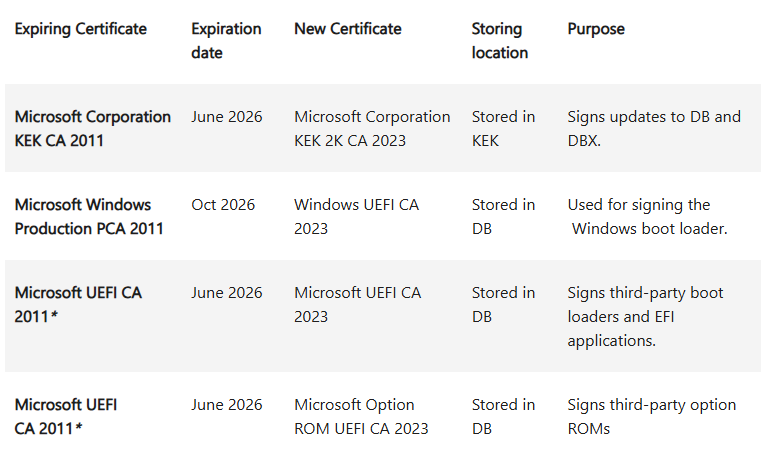
With the renewal of the Secure Boot Certificate in Windows in June 2026, a major milestore regarding endpoint security is coming up. Three crucial certificates are about to expire this June and October:
- Microsoft UEFI CA 2011: June 2026
- Microsoft Corporation KEK CA 2011: June 2026
- Microsoft Windows Production PCA 2011: October 2026
This is documented in Microsoft’s KB 5062710 at Windows Secure Boot certificate expiration and CA updates
As this is an important update, and it sounds like quite a lot can go wrong if the renewal does not work properly, it is important to understand that devices will still be able to boot, even with an old certificate.
Devices that haven’t received the newer 2023 certificates will continue to start and operate normally, and standard Windows updates will continue to install. However, these devices will no longer be able to receive new security protections for the early boot process, including updates to Windows Boot Manager, Secure Boot databases, revocation lists, or mitigations for newly discovered boot level vulnerabilities.
How the certificates should be renewed
First its important on how the Keys depend on each other and what they are used to.
- PK (Platform Key) – owned by the OEM; root of trust
- KEK (Key Exchange Key) – allows updates to DB/DBX
- DB (Allowed Signature Database) – trusted boot signers
- DBX (Revocation Database) – revoked / blocked signers
This should all happen automatically, given certain requirements:
- Secure Boot must be enabled
- Device must be UEFI (not Legacy BIOS)
- Firmware must support runtime Secure Boot variable updates
If firmware is not compatible, Windows intentionally does nothing to avoid bricking the system.
Given, that the system fulfills those requirements, Windows will update the device:
- The new Secure Boot certificates are delivered inside normal cumulative updates
This is also noted in the KBs (eg March 10, 2026—KB5079473) as an improvement. - No separate “Secure Boot update” is visible to the user
- Rollout is phased and telemetry‑gated, not simultaneous worldwide.
At this stage:
- Certificates exist inside Windows
- Nothing has been written to firmware yet
Windows then checks if the Firmware responds to Secure Boot variable writes and evaluates previous boot health signals (TPM, BitLocker, boot success)
If any check fails, Windows defers the update silently. This is why two identical models may behave differently.
Once cleared:
- Windows uses the existing Microsoft KEK (2011) to authorize:
- Adding Windows UEFI CA 2023 to DB
- Adding new KEK 2023 entries
- Firmware stores these in non‑volatile UEFI variables
This step requires a reboot, but the reboot may not be explicitly labeled as “Secure Boot update.
As a final step, a verification will be done and after the reboot the following should be true:
- Secure Boot trust chain now includes both 2011 and 2023 CAs
- Boot Manager can be validated by either CA
- Future boot components will be signed only with 2023 CA
How to check the certificates
Even though this does (or should?) not affect the immediate functionality of the device, it’s still important to have the new certificate from 2023 on all devices. There are a few possibilities to check if a device has been upgraded.
The UEFI DB
The first thing we can do is to check if the new certificate has already be written to the Database. As mentioned above, this does not indicate whether the devices already boots from a boot boot manager signed with the new certificate, it’s still a good first check to do. This returns either true or false.
([System.Text.Encoding]::ASCII.GetString((Get-SecureBootUEFI db).bytes) -match 'Windows UEFI CA 2023')The local registry
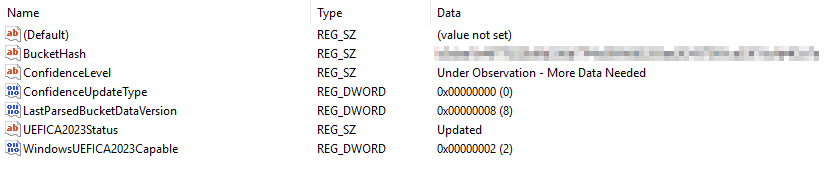
One possibility is to check the local registry at KEY_LOCAL_MACHINE\SYSTEM\CurrentControlSet\Control\SecureBoot\Servicing. All The Keys and Values are documented by Microsoft: Registry key updates for Secure Boot: Windows devices with IT-managed updates – Microsoft Support.
You can look out for a value named UEFICA2023Status which should be set to Updated. If the Certificate is not yet updated, this value can be NotStarted or InProgress.
Of course, this can also be checked with PowerShell if it needs to be automated.
Get-ItemPropertyValue `
    -Path "HKLM:\SYSTEM\CurrentControlSet\Control\SecureBoot\Servicing" `
-Name "UEFICA2023Status"the most important key this is the WindowsUEFICA2023Capable which can have three states. We are ultimately looking for a value of two in the end.
- 0 – or key does not exist – “Windows UEFI CA 2023” certificate is not in the DB
- 1 – «Windows UEFI CA 2023» certificate is in the DB
- 2 – «Windows UEFI CA 2023» certificate is in the DB and the system is starting from the 2023 signed boot manager
As mentioned above, the Certificates will be rolled out in phases and Windows checks multiple signals. It puts each device in a bucket with an assigned Confidence Level. Measuring how confident Windows is, that the Update will succeed.
ConfidenceLevel
- High Confidence: Devices in this group have demonstrated, through observed data, that they can successfully update firmware using the new Secure Boot certificates.
- Temporarily Paused: Devices in this group are affected by a known issue. To reduce risk, Secure Boot certificate updates are temporarily paused while Microsoft and partners work toward a supported resolution. This may require a firmware update. Look for an
1802event for more details. - Not Supported – Known Limitation: Devices in this group do not support the automated Secure Boot certificate update path due to hardware or firmware limitations. No supported automatic resolution is currently available for this configuration.
- Under Observation – More Data Needed: Devices in this group are not currently blocked, but there is not yet enough data to classify them as high confidence. Secure Boot certificate updates may be deferred until sufficient data is available.
- No Data Observed – Action Required: Microsoft has not observed this device in Secure Boot update data. As a result, automatic certificate updates cannot be evaluated for this device, and administrator action is likely required. For guidance, see: https://aka.ms/SecureBootStatus.
Use Microsoft Intune
Intune also provides a built in Report showing whether the Devices are using Secure Boot and if the Certificate is already deployed. You can find the report under Reports -> Windows quality updates -> Reports -> Secure Boot status.
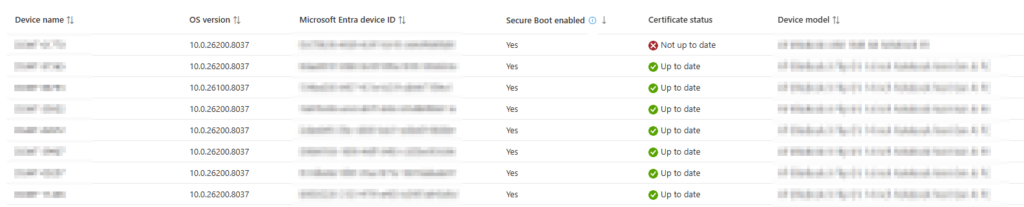
Make sure, you have enabled Windows diagnostic data and Endpoint Analytics. And as always in Intune, it takes a few days for the Report to be updated.
Remediation
As mentioned, this is managed by Microsoft in phases and the updates are rolled out with the normal Cumulative Updates. But there are still a few thing we can do remediate the issues.
First, its always good practice to upgrade the firmware of the affected devices and make sure that the UEFI is on the latest version available from the Vendor.
Check the event log with the UEFICA2023ErrorEvent code
You can also check the Value of the UEFICA2023ErrorEvent in the registry and search for those Events in the Event Viewer for additional information.
Trigger the update manually
Important: This should be done as a last step if it is not done automatically. And make sure you have your Bitlocker Keys safely stored.
There are multiple steps you need to take to trigger a the rollout of the new certificates.
- Set the registry key
MicrosoftUpdateManagedOptIninHKEY_LOCAL_MACHINE\SYSTEM\CurrentControlSet\Control\Securebootto0x5944.
This will skip the telemetry checks from Windows and should then trigger an update.
This is described here: Secure Boot certificates expire in June 2026 – Windows IT Pro Blog - Wait: Now you will need to wait for the next CU to run and update the certificates. This may take more than 30 days, so be patient.
- Fallback: Above steps should change the
UEFI2023StatustoInProgressandWindowsUEFICA2023Capableto 1. If this does not happen, there are two possibilities:- Run
WinCsFlags.exe /apply --key "F33E0C8E002". This will force deploy the Secure Boot Certificates (Windows Configuration System (WinCS) APIs for Secure Boot – Microsoft Support) - If above does not work, we can fall back to the Scheduled Task
Secure-Boot-Update.- Set the Registry Key:
AvailableUpdatesto0x40and run the Scheduled Task\Microsoft\Windows\PI\Secure-Boot-Update. This will then push the certificate into the store. - Set the Registry Key:
AvailableUpdatesto0x100and run the same Task again. This will then Update the boot manager.
- Set the Registry Key:
- Run
- After above steps the
WindowsUEFICA2023Capableshould show a value of 1, meaning that the Certificate is in the Database. - Reboot the Device: The Device now needs a full reboot to boot from the the signed boot loader. Be carefull with features like Hotpatch and Fastboot.
- Verify
WindowsUEFICA2023Capable. In the end the Value should change to 2.
Remediate using Intune
When using Intune, you may want to have a look at the great Script from Mindcore: Secure Boot Certificate Update – Making It Happen with Intune Remediations – Mindcore Techblog.
The Script is using Remediation Scripts to run above steps. If you don’t have remediation scrtipts available becaus of missing E*-Licenses there are some workarounds of course.
Conclusion
While the renwal of the Certificate is a thing that should happen automatically, most managed by Windows, we all know Microsoft well enough. It is definitely worth checking the status of devices to ensure the certificates have been renewed.
Schreiben Sie einen Kommentar