

This summer could get interesting for Intune Engineers as the Microsoft Intune Root Certificate will be renewed. The «old» certificate will expire on the 12 August and be replaced with a new one, expiring in September 2030. This first requires the new root and intermediate certificate to be available on the device and the Intune MDM Device CA to be renewed and to trust the new intermediate and root certificates.
Of course, this should happen automatically, but as a non-renewed certificate would leave a device unable to connect to Intune and require a new enrollment, it may be worth having a look at it.
So first, we can check the Root Certificates on the local computer. For newer computers there may only be one, valid from 15.09.2025 to 15.09.2030. Machines that have been installed a bit earlier, still have the older certificate in the store:

We can observe the same with the intermediate certificates, just with some shorter lifespans. Important is the new one, valid from 15.09.2025 to 15.09.2028, so two years shorter than the root.

And in the Personal certificate store we have the Intune MDM certificate used to communicate with Intune.
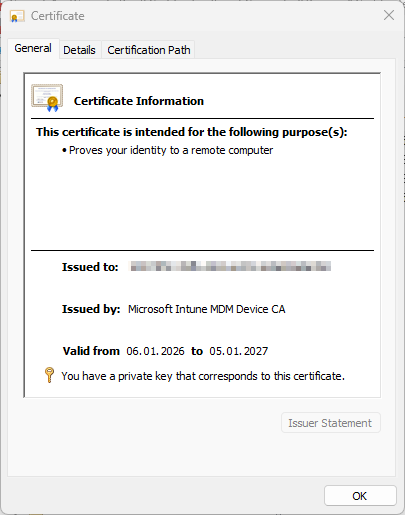
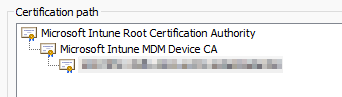
Now it’s important that the new MDM Certificate trusts the new Intermediate and root certificates. This can then be checked in the certification path:
Automation with PowerShell
Of course, this can be automated with PowerShell to do some inventory on the devices to make sure, all devices have received the new certificates.
Check the Personal Certificate
$certStore = "Cert:\LocalMachine\My"
$searchCriteria = "Microsoft Intune MDM Device CA"
Get-ChildItem -Path $certStore | Where-Object {
    $_.Issuer -like "*$searchCriteria*" -or $_.Subject -like "*$searchCriteria*"
} | Format-ListThis results in an output like this:
Subject      : CN=1037......a760
Issuer       : CN=Microsoft Intune MDM Device CA
Thumbprint   : 0A22CDFFB780C95B8634973B9B765D90A539678F
FriendlyName :
NotBefore    : 06.01.2026 19:04:52
NotAfter     : 05.01.2027 10:32:07
Extensions   : {System.Security.Cryptography.Oid, System.Security.Cryptography.Oid, System.Security.Cryptography.Oid,
System.Security.Cryptography.Oid...}Check the Intermediate Certificate
$certStore = "Cert:\LocalMachine\CA"
$searchCriteria = "Microsoft Intune Root Certification Authority"
Get-ChildItem -Path $certStore | Where-Object {
    $_.Issuer -like "*$searchCriteria*" -or $_.Subject -like "*$searchCriteria*"
} | Format-ListThis can then return two or more certificates. Important is the following one, expiring in 2028.
Subject      : CN=Microsoft Intune MDM Device CA
Issuer       : CN=Microsoft Intune Root Certification Authority
Thumbprint   : 6040208B621612A922AF042B73529CD35C23ADA5
FriendlyName :
NotBefore    : 15.09.2025 02:00:00
NotAfter     : 15.09.2028 02:00:00
Extensions   : {System.Security.Cryptography.Oid, System.Security.Cryptography.Oid, System.Security.Cryptography.Oid,
System.Security.Cryptography.Oid...}Check the Root Certificate
$certStore = "Cert:\LocalMachine\Root"
$searchCriteria = "Microsoft Intune Root Certification Authority"
Get-ChildItem -Path $certStore | Where-Object {
    $_.Issuer -like "*$searchCriteria*" -or $_.Subject -like "*$searchCriteria*"
} | Format-ListAnd of course the root certificate, expiring in 2030:
Subject      : CN=Microsoft Intune Root Certification Authority
Issuer       : CN=Microsoft Intune Root Certification Authority
Thumbprint   : A197D6717352023B615F6ED444A6981ABC80F6C9
FriendlyName :
NotBefore    : 15.09.2025 02:00:00
NotAfter     : 15.09.2030 02:00:00
Extensions   : {System.Security.Cryptography.Oid, System.Security.Cryptography.Oid, System.Security.Cryptography.Oid,
System.Security.Cryptography.Oid...}Check the full chain
The easiest way is to check the full chain. This will look for the MDM certificate in the Personal store and check the chain.
$certStore = "Cert:\LocalMachine\My"
$searchCriteria = "Microsoft Intune MDM Device CA"
$cert = Get-ChildItem -Path $certStore | Where-Object {
    $_.Issuer -like "*$searchCriteria*" -or $_.Subject -like "*$searchCriteria*"
}

$chain = New-Object System.Security.Cryptography.X509Certificates.X509Chain
$chain.ChainPolicy.RevocationMode = 'NoCheck'   # avoid CRL delays
$null = $chain.Build($cert)

$chain.ChainElements | ForEach-Object {
    [PSCustomObject]@{
        Subject    = $_.Certificate.Subject
        Issuer     = $_.Certificate.Issuer
        NotBefore  = $_.Certificate.NotBefore
        NotAfter   = $_.Certificate.NotAfter
        Thumbprint = $_.Certificate.Thumbprint
    }
}This then results in an output like this:
Subject    : CN=1037......a760
Issuer     : CN=Microsoft Intune MDM Device CA
NotBefore  : 06.01.2026 19:04:52
NotAfter   : 05.01.2027 10:32:07
Thumbprint : 0A22CDFFB780C95B8634973B9B765D90A539678F

Subject    : CN=Microsoft Intune MDM Device CA
Issuer     : CN=Microsoft Intune Root Certification Authority
NotBefore  : 15.09.2025 02:00:00
NotAfter   : 15.09.2028 02:00:00
Thumbprint : 6040208B621612A922AF042B73529CD35C23ADA5

Subject    : CN=Microsoft Intune Root Certification Authority
Issuer     : CN=Microsoft Intune Root Certification Authority
NotBefore  : 15.09.2025 02:00:00
NotAfter   : 15.09.2030 02:00:00
Thumbprint : A197D6717352023B615F6ED444A6981ABC80F6C9Conclusion
While this should happen automatically, it may still be worth checking the certificates before the expiration of the old root certificate. Devices without a valid certificate will not be able to communicate with Intune and will need to be newly enrolled.


Schreiben Sie einen Kommentar zu David Lienhard Antwort abbrechen